Scaling to Enterprise: Introducing user roles and permissions management
Role
Team
Client
Integritag GmbH
Scope
UI Design
Information Architecture
Stakeholder Alignment
Product Strategy
Rapid Prototyping
Documentation
Handoff
Timeline
Feb 2024 – May 2025
Link
Challenge
The Team‑only permissions model of ScanVoyage couldn’t support enterprise clients with multiple teams, centralized governance, and à‑la‑carte feature licensing. We needed an Organization layer above Teams, plus clearer Information Architecture and logic to integrate a new roles and permissions model into the platform.
Outcome
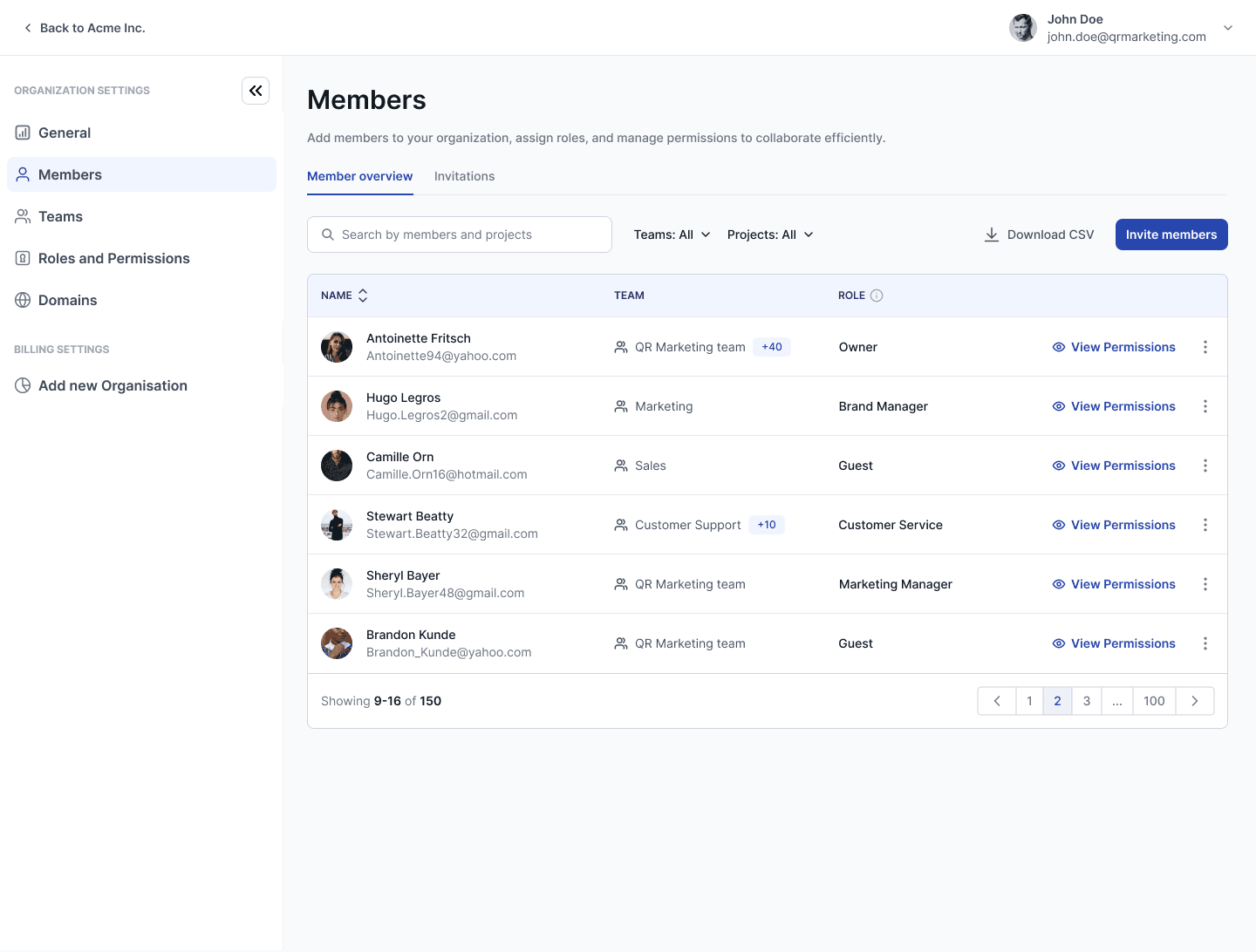
Designed and scoped an Organization layer that centralizes roles, access, and feature management across the platform. Introduced a dedicated Admin Console to manage feature access, define custom roles, and scope permissions to specific teams and projects.
Impact
Enabled sales to onboard larger, multi-team clients, resulting in high six-figure € new revenue (exact numbers confidential).
Faster organization setup thanks to a single Admin Console and clearer navigation.
Stronger base for what’s next: white-label, usage quotas, and alerts can be added ‘on top’ without reworking the structure.
Project Background
From Team-Based Tool to Enterprise Platform
ScanVoyage is a B2B SaaS platform for end-to-end QR code management—generating codes, managing print, and linking them to interactive digital experiences.
After working on the platform for a few months, a big obstacle appeared that could potentially result in shutting down the entire project! The platform was at a pivotal stage- the sales team informed us that they are not able to onboard new enterprise clients because one crucial feature was missing- the ability to manage multiple teams under one Organization and assign individual teams and users custom access to features.
The main task was to move ScanVoyage from a team‑only model to an Organization model so enterprises can manage teams and give them more granular access to features.
Process
Rethinking the entire IA and redesign the Navigation
Big structural changes (the new Organization layer) meant the IA and navigation had to change too. I mapped a new sitemap so the development team could see which pages to add, which to move, and how legacy pages fit into the new structure.
Assumption: Multiple Organizations, each with multiple Teams.
Outcome: Target sitemap showing the new Organization layer (new items highlighted in purple).
How this shows up in the UI
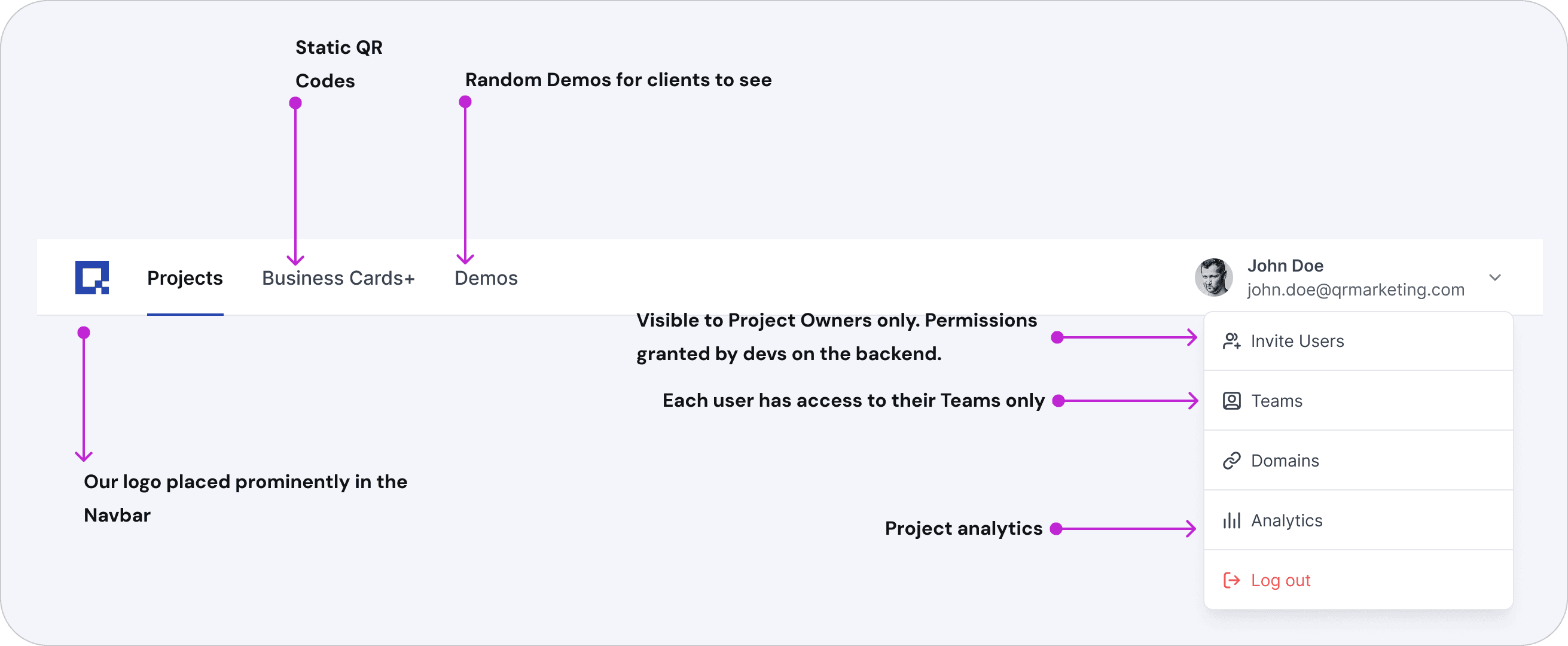
Before : One main navigation bar. Permissions managed only on the backend.
Most permissions/settings lived in a secondary menu. We had Admins (mostly our development team) and regular users. The highest permission for a refular user was Project Owner.
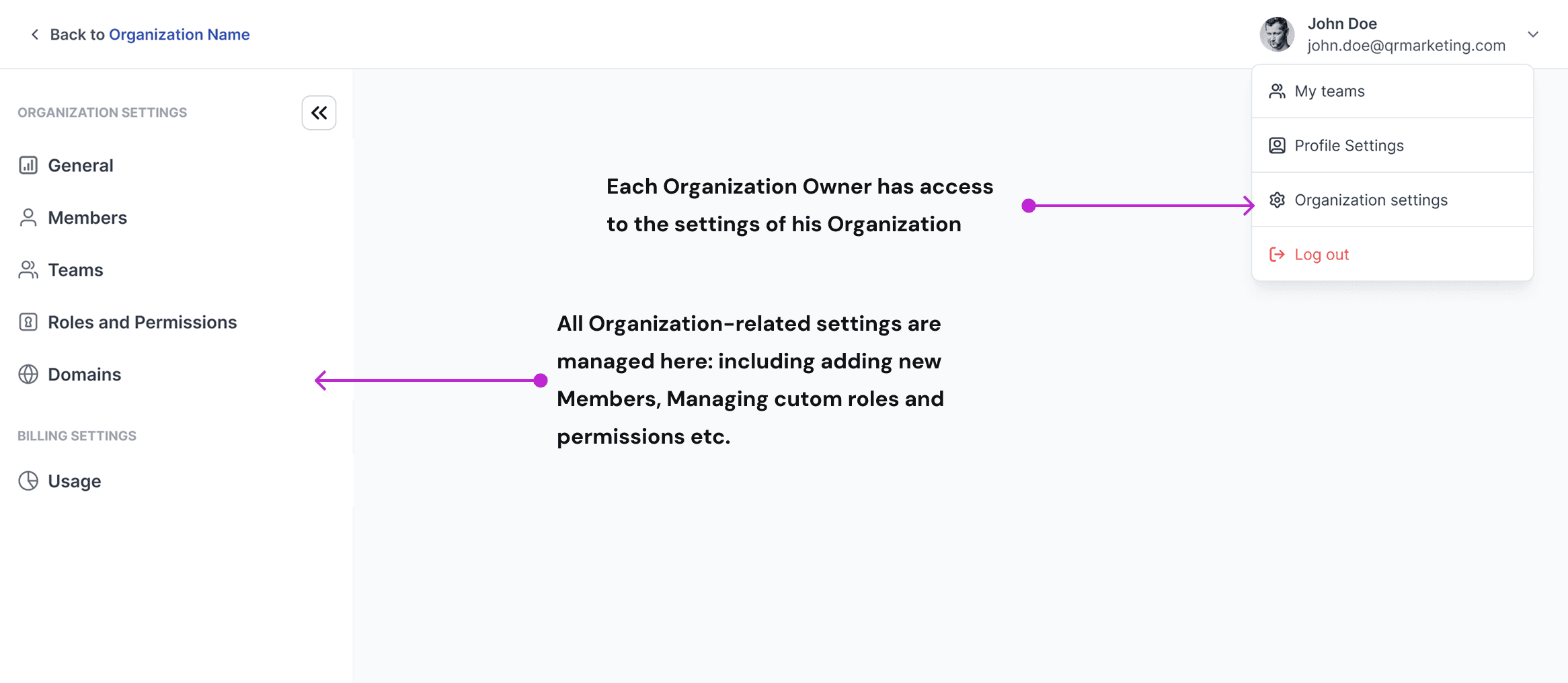
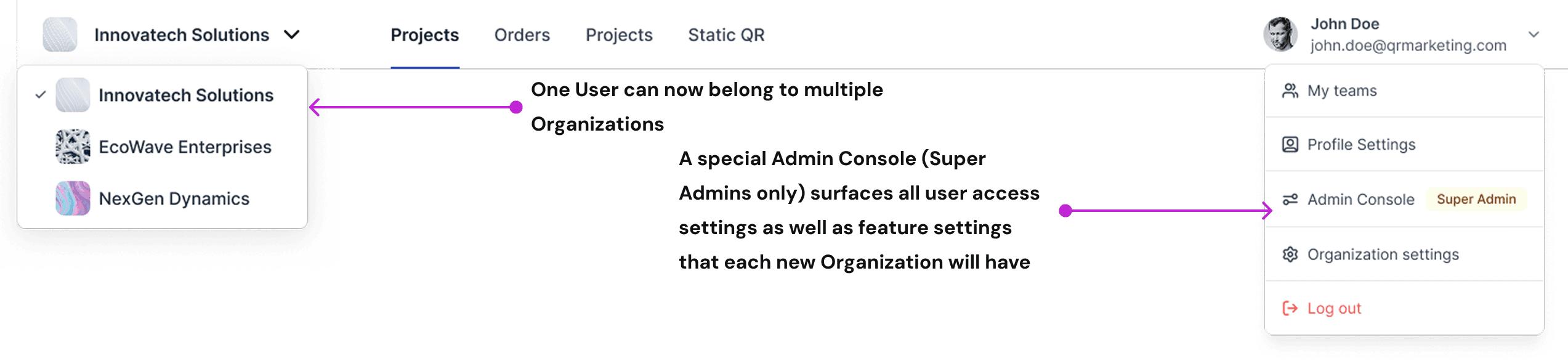
After: Organization switcher, separate Admin Console to Manage each Organization setting-from Members to Usage.
The main navbar now includes an Org switcher (one user can belong to multiple organizations). There is a central place to manage organization Settings- Members, Teams, Domains, Roles & Permissions, and Usage. Also, a separate Admin Console lets Super-Admins view all organizations and create new ones.
Using AI to run Synthetic User Interviews and surface early issues
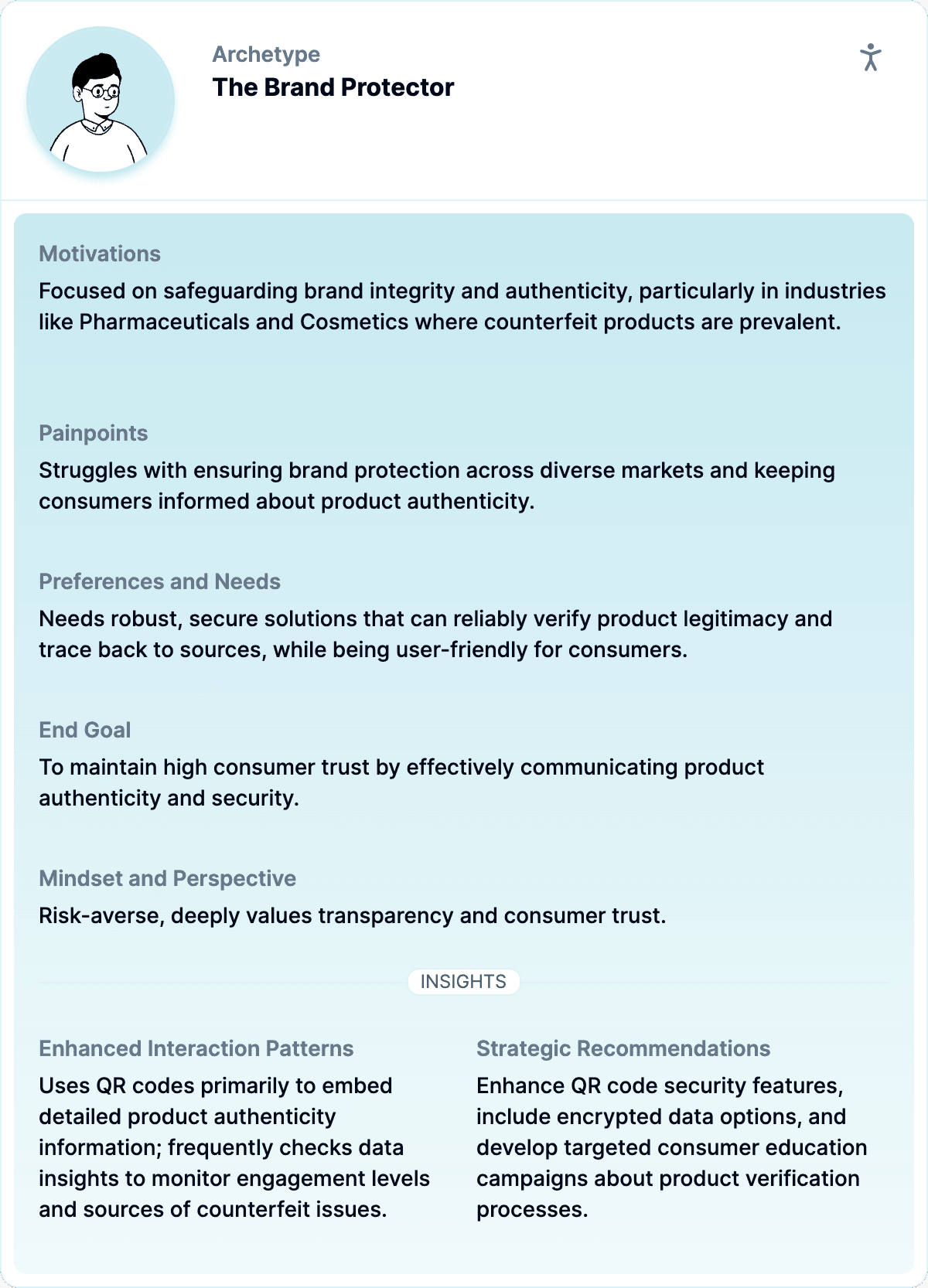
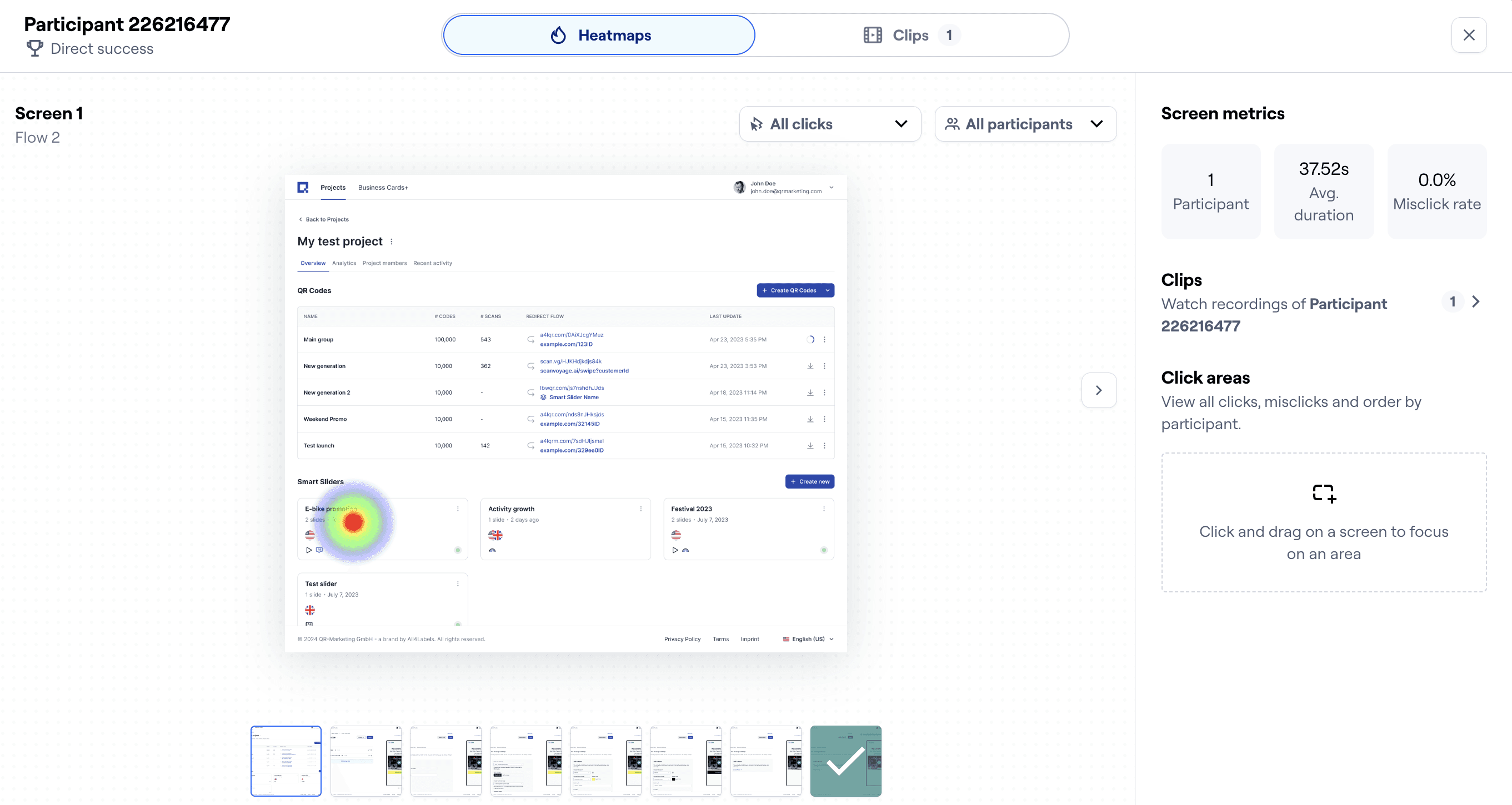
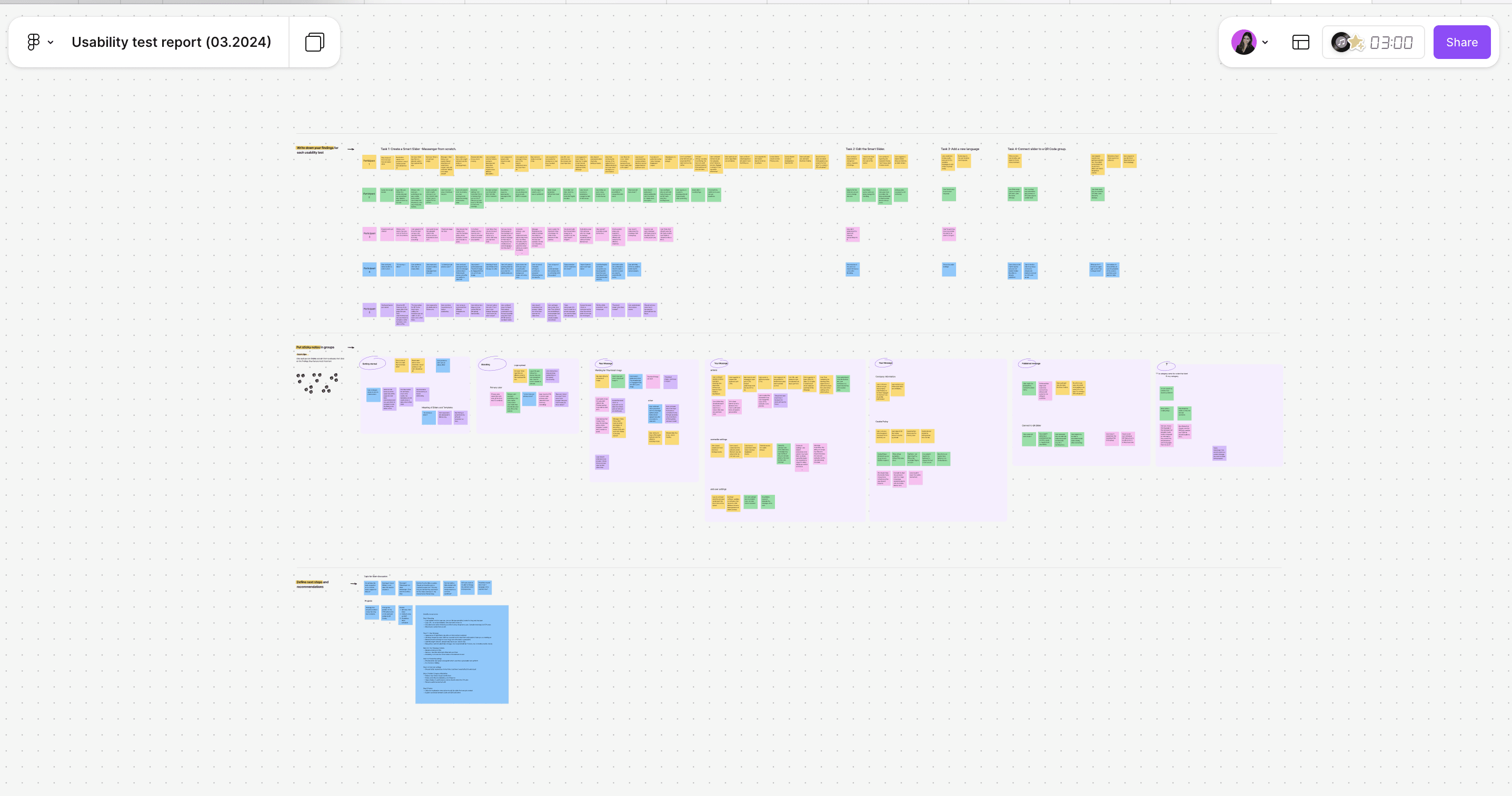
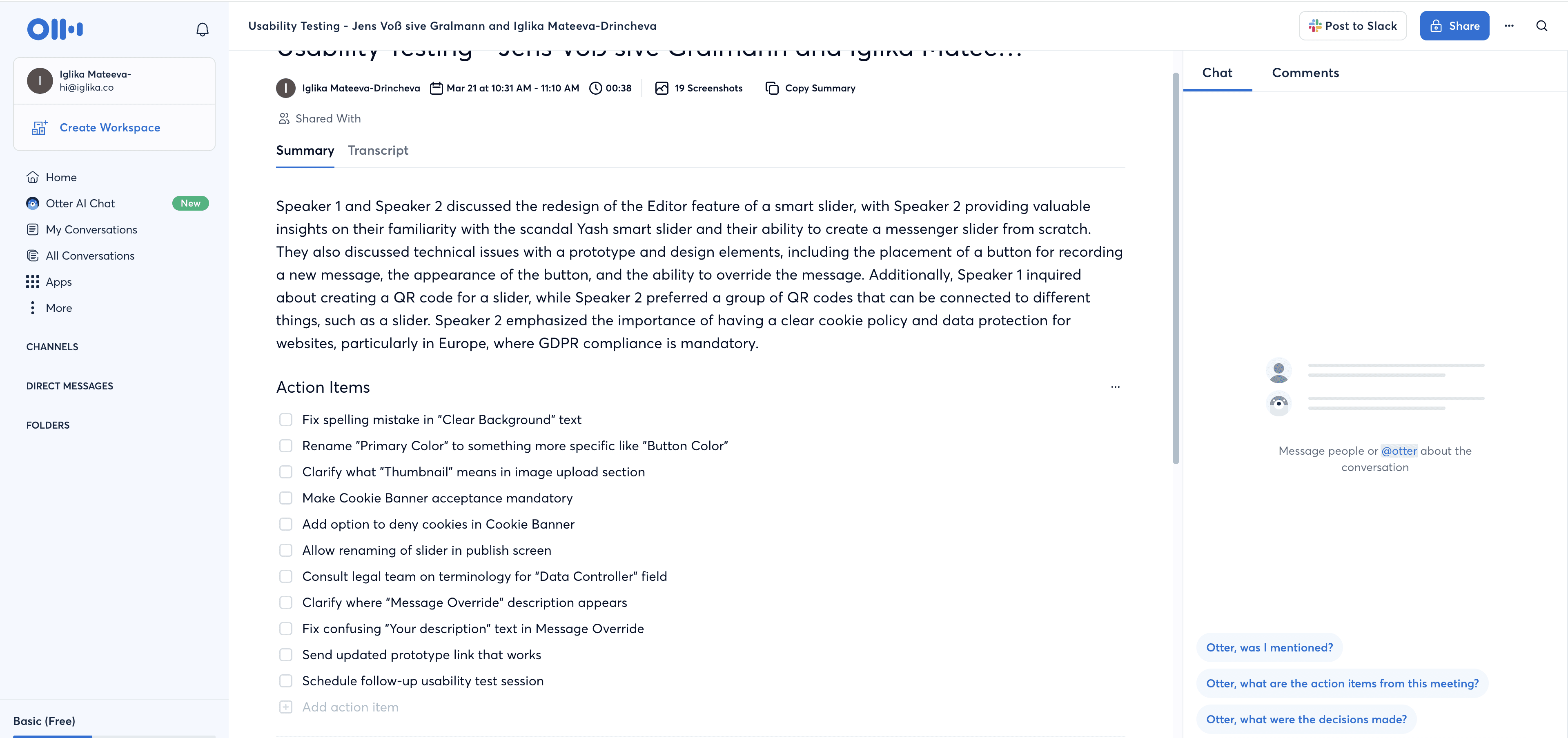
With no direct access to enterprise users, I decided to experiment with synthetic interviews using AI-generated personas and a scripted guide. I used entirely generated AI Personas that I fed into GPT, created an interview outline and had GPT lead and evaluate the interview results 😅
→ It’s an imperfect method, but it helped surface early issues and blind spots.
Roles and Permissions: an Evolution
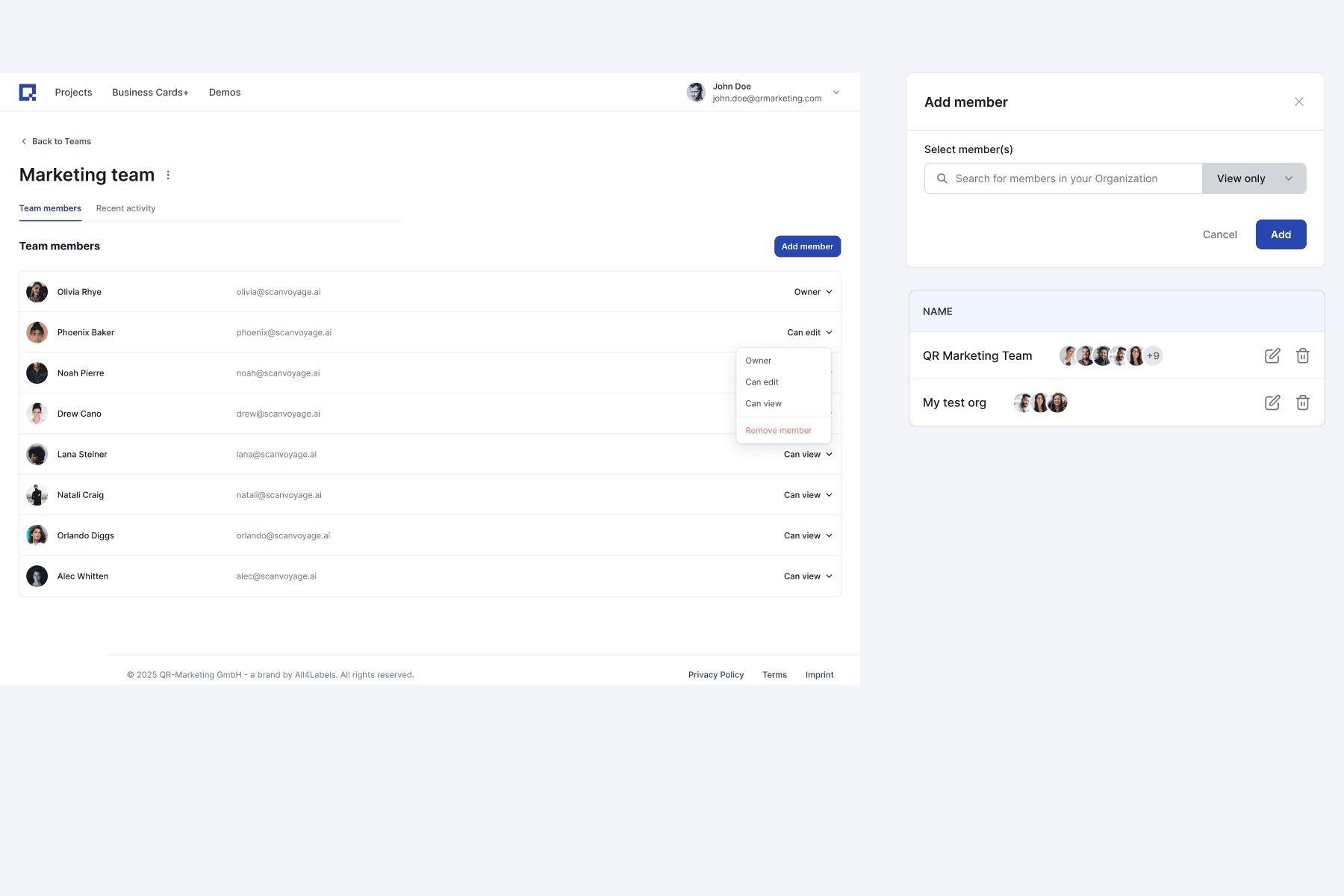
Initially, Projects were owned by Teams, so we had a pretty simple roles structure: Project Owner, Editor and Viewer.
In order to have a user manually select the access to different existing features on the platform and allow a ‘mix and match’ approach for custom roles, we had to rethink the entire logic for how permissions would work and what kind of roles we need throughout the platform.
The logic changed multiple times and I had to adjust the UI along the way, in order to accomodate the new logic.
Version 1- a 3 level model
In the very beginning, we explored a 3‑level model. Each role has predefined access to specific features as well as a main role -either Admin, Editor or Viewer.
When inviting new users, the Admin:
Selects the Standard role (Owner, Viewer or Editor) and
Sets specific rights when it comes to Access of Projects and Teams.
2.1. decides whether User has access to one ore more specific projects or ALL projects
2.2. decides whether User has has access to one or more Teams or ALL teams
Issue with this approach:
Role labels varied by context. “Owner/Editor/Viewer” could mean different permissions at a Team vs. Project, so users couldn’t predict what they could do.
Conflict resolution was invisible. Users couldn’t see why they had access
Permissions overlapped, and the same label could differ by context, creating confusion for users and operational pain for admins.
Version 2-Split Org‑level vs. Team/Project Access
We needed a simpler, more scalable system—and that’s what led us to rethink the model entirely.
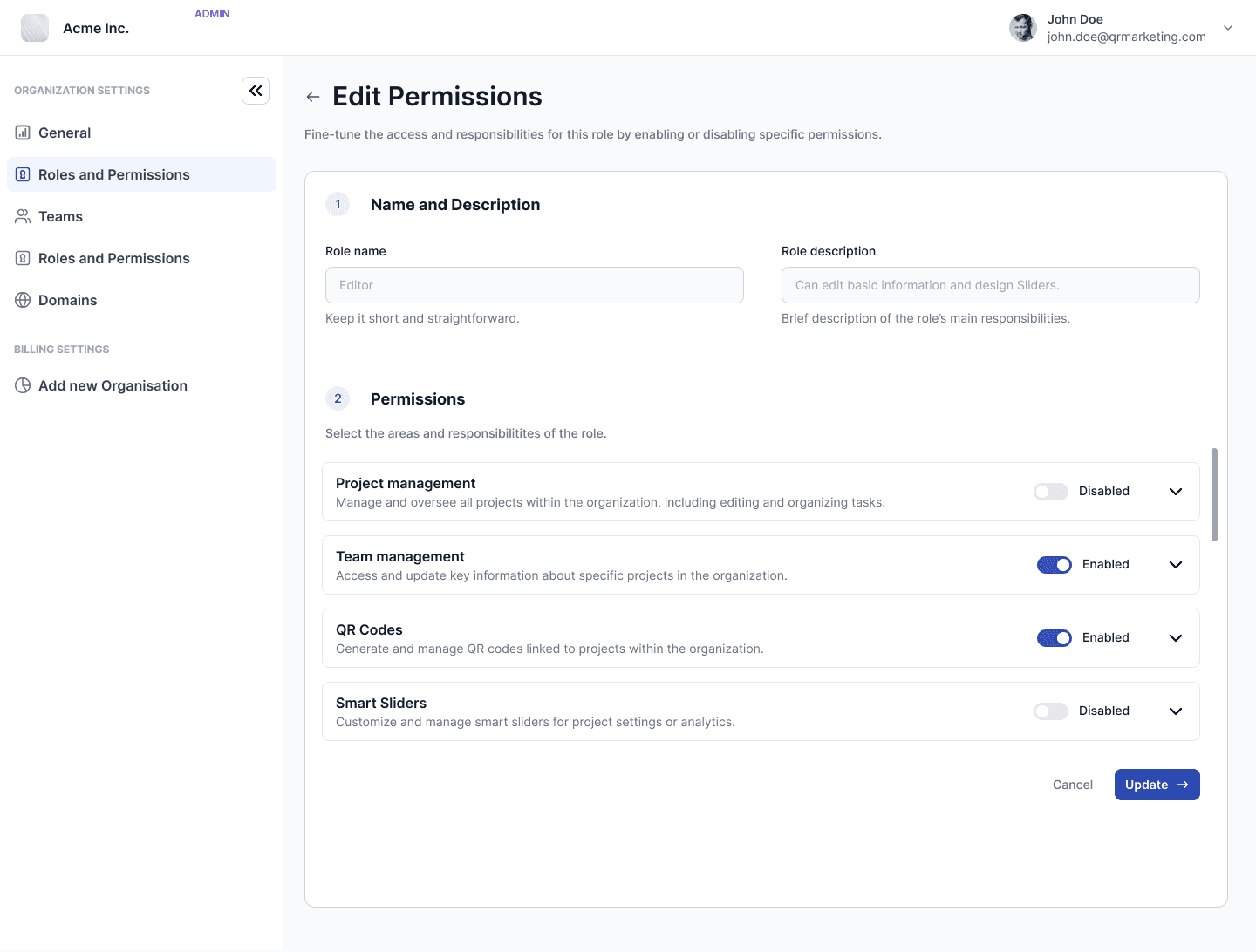
Decision to split the access to Ogranization-level access and Teams- and Project-specific access.
Introduced Organization‑level roles (e.g., Super Admin, Admin, Org Owner, Editor, Viewer, Regular user).
Allowed custom granular permissions (e.g., Fingerprint management, Slider creation, ID creation).
Organization Admin can invite members and grant scoped permissions (Org‑wide, Team‑specific, Project‑specific).
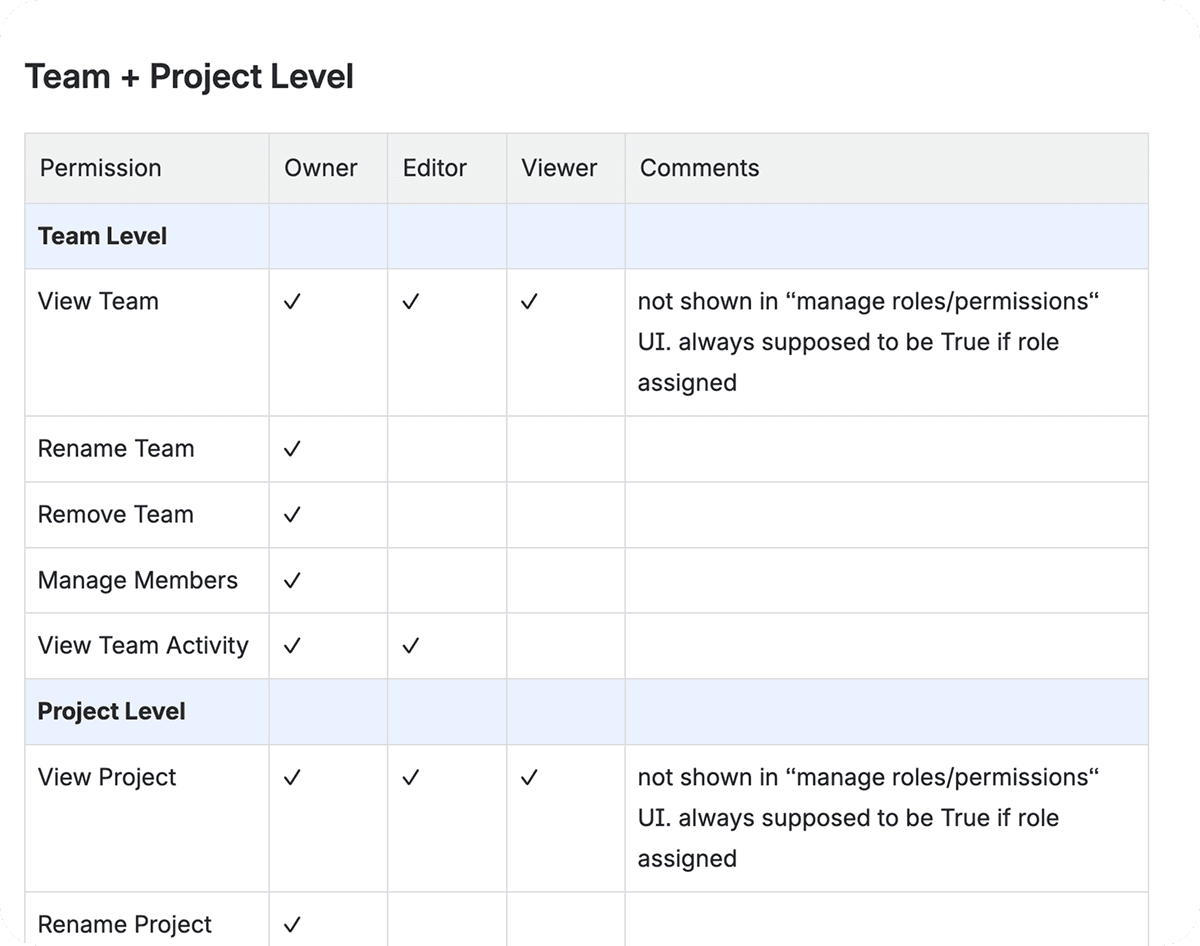
Final logic: organization-level roles with access persmissions to features.
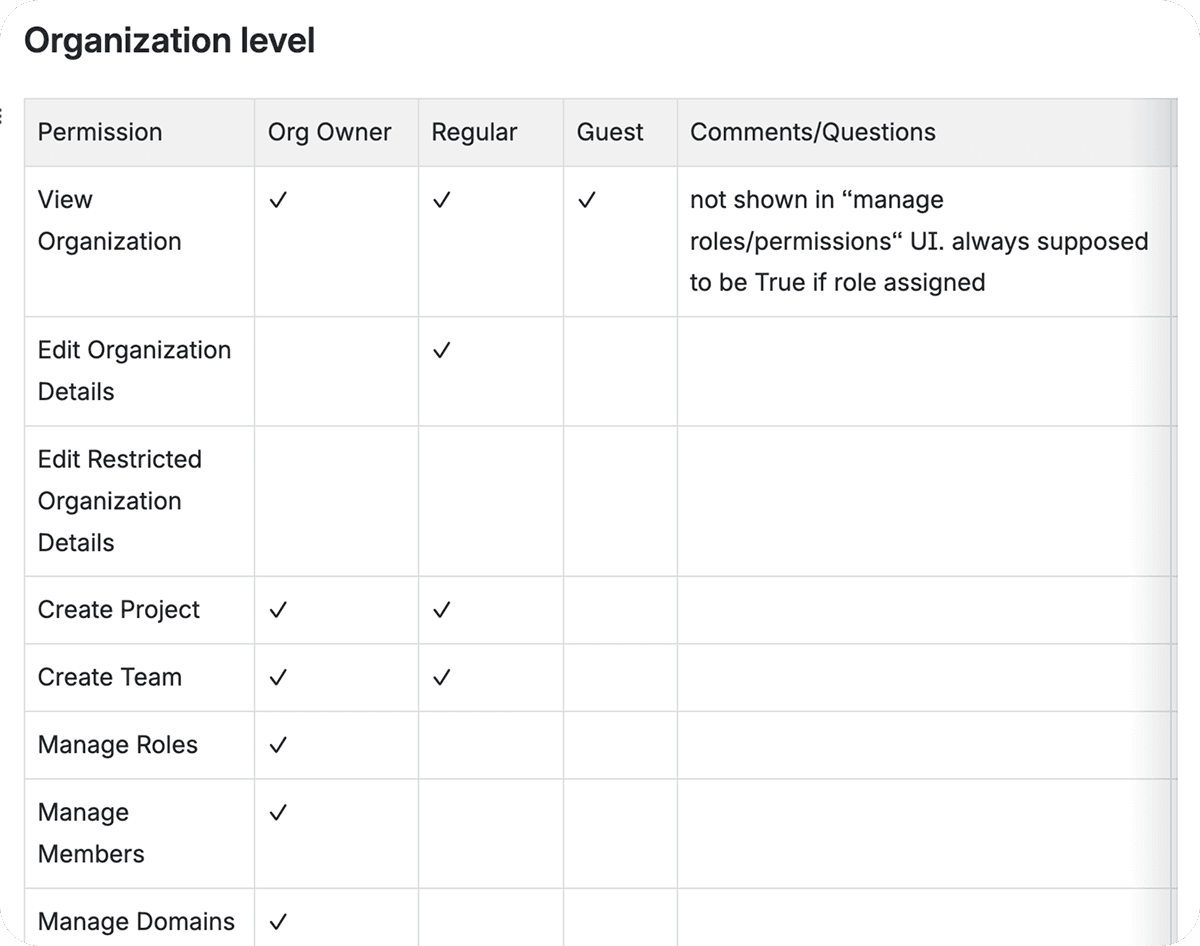
In the end, we kept Org-level roles but bundles the permissions together. Access permissions are additive and inherit upwards (Viewer < Editor < Admin), so there’s less to manage. Features act like on/off bundles—turn a feature off and its permissions don’t apply anywhere.
How it works now in practice
Admins define roles once at the Organization level (e.g., “Brand Manager”).
Each role has simple columns: Viewer, Editor, Admin. Tick the minimum column that should have a permission; higher columns get it automatically.
When you invite someone to a Team or Project, you just pick Viewer / Editor / Admin; the system uses that column across the roles they hold.
If a user gets access from multiple places, the system adds it up—they get the highest effective permissions for that context.
Users can see why they have access (source and level), so conflicts are easier to understand.
Why this works
Simpler mental model: one place to define access; fewer role labels to interpret.
Fewer errors: the left-to-right grid makes it obvious when a permission would reach more people.
Faster setup: invite flow is just “add person → pick level,” with feature toggles for extras.
Backwards-compatible: Team/Project logic still works under the hood without confusing the UI
UI Design
I designed and aligned the full Organizations experience, while the roles/permissions model changed three times.
Each change meant revisiting flows, labels, and empty states to keep the UI in sync without restarting from scratch.
How I handled the shifting model:
Built modular screens: kept core layout stable and swapped permission components as the model evolved.
Centralized copy for error/edge states (duplicate access, implicit access) to avoid drift.
Kept a living decision document so engineering and sales saw changes in one place.
Used reusable components (list, table, invite modal, matrix) to speed rework after each iteration
Outcome
Launched the Organization layer that unlocked enterprise onboarding
Organizations launched September 2025. We moved roles and feature control into a single Organization layer and added an Admin Console. This allowed sales to onboard larger, multi‑team clients on organization‑level licensing.
Project Impact
The feature launch resulted in high six-figure € new revenue
Enabled sales to onboard larger, multi-team clients, resulting in high six-figure € new revenue.
Reduced admin overhead with a single Admin Console
Thanks to a single Admin Console and clearer navigation, Admins can now invite new Organizations and enable the desired settings themselves.
Built a scalable foundation for future monetization
A white-label solution, usage quotas, and alerts can be added ‘on top’ without reworking the structure.